Alert Builder
The Alert Builder writes the alert message for you. You choose what should happen with a few clicks, and it gives you the exact text to paste into TradingView - no coding, no typos.
In simple words
It is a form. You fill in "which account, what to do, how big, where to take profit", click Save, and it gives you a ready-made message. You paste that message into your TradingView alert once.Make an alert
Open Alert Builder → New Alert
Every field has a small ? next to it - click it for an explanation with an example.
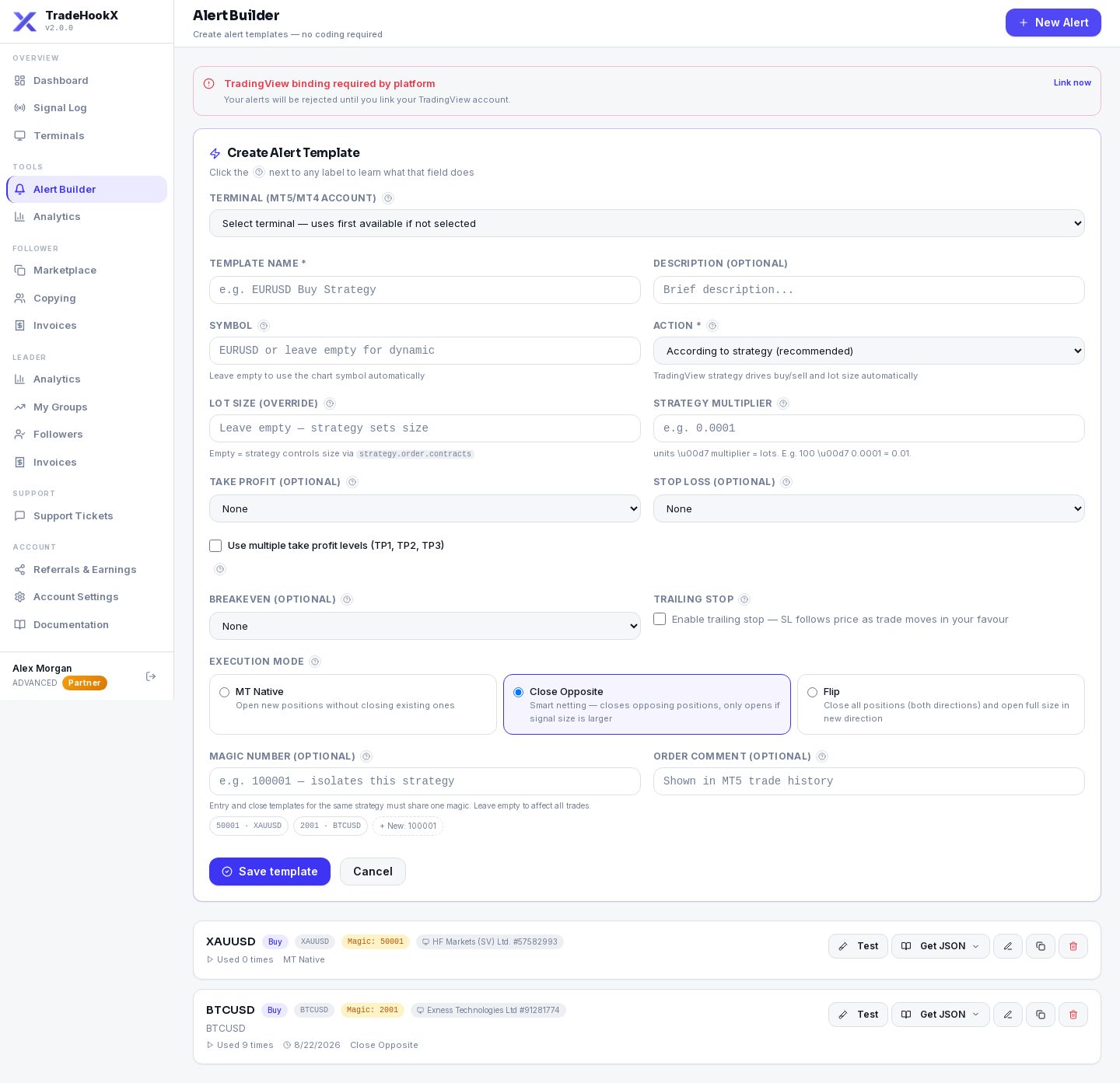
Fill in the fields (all explained below) and click Save
If something looks risky, a "Before you save" window explains it. Go back and fix, or Save anyway.
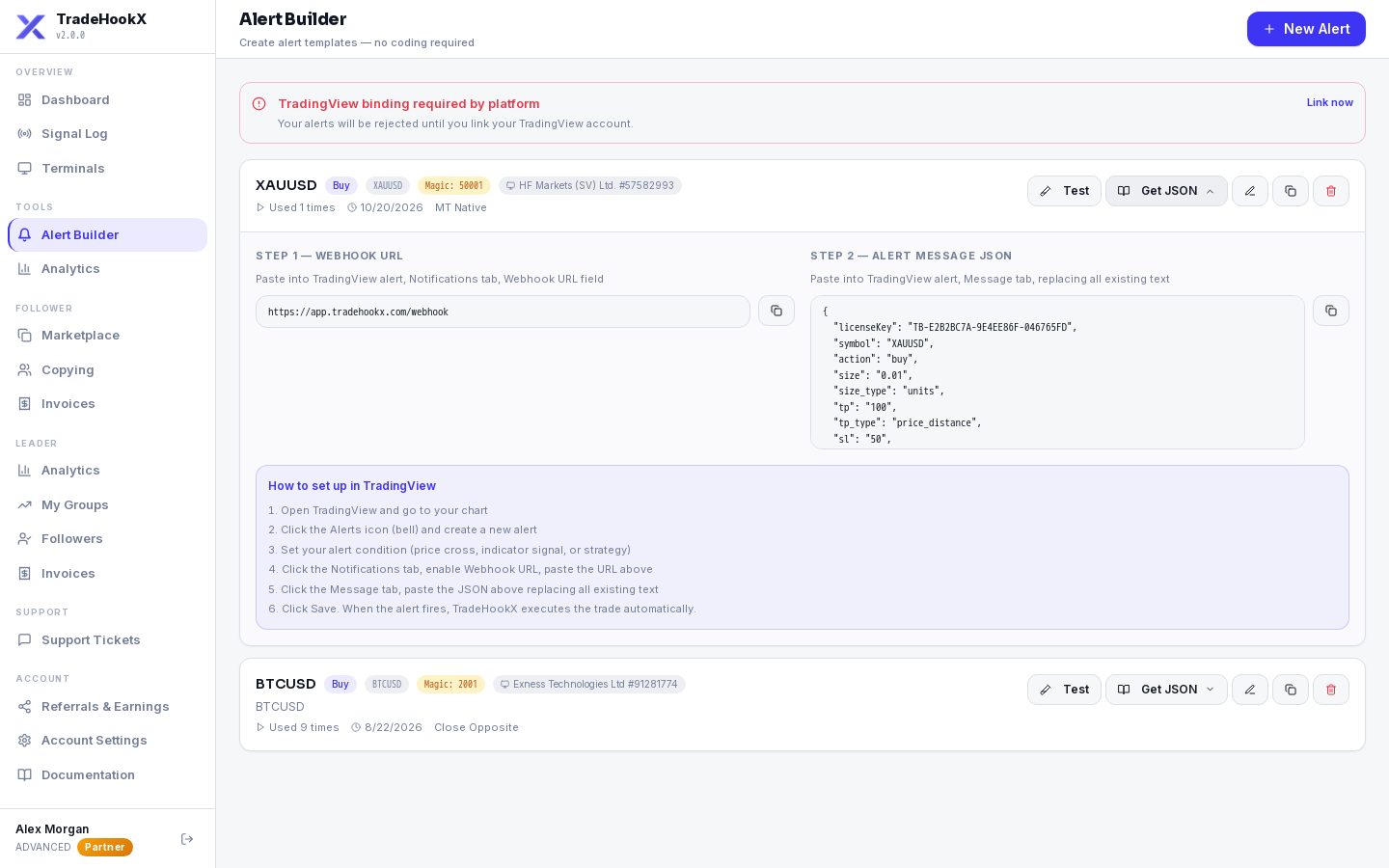
Get JSON → copy into TradingView
Step 1 is the webhook URL, step 2 the message. Paste both into your TradingView alert (see TradingView Alerts).
The fields, one by one
| Field | What it means | Example |
|---|---|---|
| Terminal | Which MT5 account this alert trades on. Its license key goes into the message automatically. | Exness #61200345 - Cloud |
| Template name / Description | Only for you, so you can find the alert later. | Gold scalper - entries |
| Symbol | What to trade. Leave EMPTY to use the chart's symbol ({{ticker}}) - then one message works on every chart. Different name at your broker? Use Symbol Mapping. | XAUUSD, EURUSD, US100 |
| Action | What should happen - see the list below. | According to strategy |
| Comment | A short note stored on the order in MT5. Changes nothing about trading. | London breakout |
Action - what should happen
| Action | What the EA does |
|---|---|
| According to strategy (recommended for Pine strategies) | TradingView fills in buy or sell and the size each time the strategy trades. One alert does entries, exits and reversals. |
| Buy / Sell | Opens a buy (wins when price goes up) or a sell (wins when price goes down). |
| Close Buy Positions / Close Sell Positions | Closes your buy (or sell) trades on that symbol - all of them, or only "Lots to close". |
| Close All Positions | Closes buys AND sells on that symbol. With no symbol in the message it closes them on every symbol. |
| Buy Limit / Sell Limit | A waiting order at a better price: buy when the price FALLS to your level, sell when it RISES to it. |
| Buy Stop / Sell Stop | A waiting order for a breakout: buy when the price RISES above your level, sell when it FALLS below it. |
Closes only touch trades with the same magic number
A close alert closes the trades whose magic number matches the alert's magic. A close WITHOUT a magic only closes trades that were opened without one (the EA's default number) - not trades of other strategies, and not trades you clicked by hand. More in Closing Trades.How big - lot size
| Field | What it means | Example |
|---|---|---|
| Lot size (override) - strategy alerts | Empty = the size your Pine strategy sends is used. Type a number to always trade that fixed size instead. | empty, or 0.01 |
| Strategy multiplier - strategy alerts | Pine strategies often send "contracts" (e.g. 100) instead of lots. The EA multiplies: contracts × multiplier = lots. | 100 × 0.0001 = 0.01 lot |
| Amount type: Units (lots) - buy/sell alerts | A fixed lot size. | 0.01 = a micro lot |
| Amount type: Percentage of balance | Risk sizing: the lot is calculated so that if the stop loss is hit you lose this % of your balance. Needs a Stop Loss in pips - without one the EA uses 0.01 lot. | 1% of $1,000 with a 20-pip SL |
| Lots to close - close alerts | Close only this many lots, taking the OLDEST trades first. Empty = close everything that matches. Less than your broker's minimum closes the whole trade. | 0.04 of a 0.10 buy |
Tip for the multiplier: fire one test trade, look at the lot size in MT5, and adjust until it matches what you want.
Take profit and stop loss
Both are optional, and each can be set three ways:
| Type | Meaning | Example |
|---|---|---|
| Pips from entry | A distance from your entry price, in TradeHookX pips. | EURUSD 30 = 30 pips |
| Percentage from entry price | A % of the entry price. Means the same on every symbol - best for gold, crypto and indexes. | BTC at 60,000, 1% = 600 away |
| Fixed price | The exact price level. | 1.10500 |
A pip is not the same size everywhere
TradeHookX counts one pip as 10 of the symbol's smallest price steps. On EURUSD that is 0.0001 (the normal pip). On gold, crypto and indexes it is much smaller than people expect: 100 "pips" on BTCUSD is only about $10. The input box shows a hint for the symbol you typed. When in doubt, use Percentage. A stop that is too close is refused by the broker ("Invalid stops").Multiple take profits (TP1, TP2, TP3)
Instead of one exit, close the trade in up to 3 steps. For each level type a distance in pips and how many lots to close there.
- •Example: buy 0.03 lot. TP1 20 pips close 0.01, TP2 40 pips close 0.01, TP3 60 pips close 0.01.
- •Move SL to entry after TP1 is hit: the rest of the trade can no longer lose.
- •Move SL to TP1 price after TP2 is hit: the rest of the trade keeps at least the TP1 profit.
- •The lots do not have to add up. Whatever is left stays open without a take profit.
Breakeven
When the trade is this many pips in profit (Trigger), the EA moves the stop loss to your entry price plus a small Offset, so the trade can no longer turn into a loss.
- •Example: buy EURUSD at 1.1000, trigger 15, offset 2 → at 1.1015 the stop moves to 1.1002.
- •Use Pips from entry for breakeven - the trigger and offset are always counted in pips.
- •A good start: trigger at about half of your take profit distance.
Trailing stop
| Field | What it means |
|---|---|
| Trail distance | How many pips behind the price the stop loss follows. |
| Step | How many pips the price must move before the stop is moved again. |
| Activation (optional) | Only start trailing after this many pips of profit. |
Set an activation if you also use a stop loss
Without activation the trailing starts at once - a 50-pip stop with a 20-pip trail is immediately tightened to 20 pips. Set the activation to the profit where you want trailing to begin (e.g. your TP1 or breakeven trigger).Execution mode
| Mode | In one sentence |
|---|---|
| Close Opposite (default for strategies) | A signal against your open trade closes that much of it first, and only opens the rest. You never hold a buy and a sell together. |
| Flip | Closes everything on that symbol (both directions) and opens the full size the new way. |
| MT Native | Always opens a new trade and never closes anything - for pyramiding or hedging. |
Close Opposite and Flip are explained with pictures in Closing Trades. If you choose MT Native for a strategy alert, the builder warns you: every exit of your strategy would open an opposite trade instead of closing.
Magic number
A number stamped on every trade of this alert. Use one number per strategy - the entry alerts AND the close alerts of the same strategy must share it.
- •Quick picks under the field: reuse a magic your other alerts already use, or take the next free one.
- •Empty = the EA's default number. Fine if you run only one strategy on the terminal.
- •Close alert without a magic while other alerts use magics? The builder warns you before saving.
Copy leaders: the group's magic is required
If the terminal leads a copy group, every alert on it - entries AND closes - must carry that group's magic number. The builder shows a "Use 5151 (Gold Liquidity Pro)" button for it. From 24 Oct 2026 12:00 UTC an alert with a different magic is rejected. See For Leaders.Your saved alerts
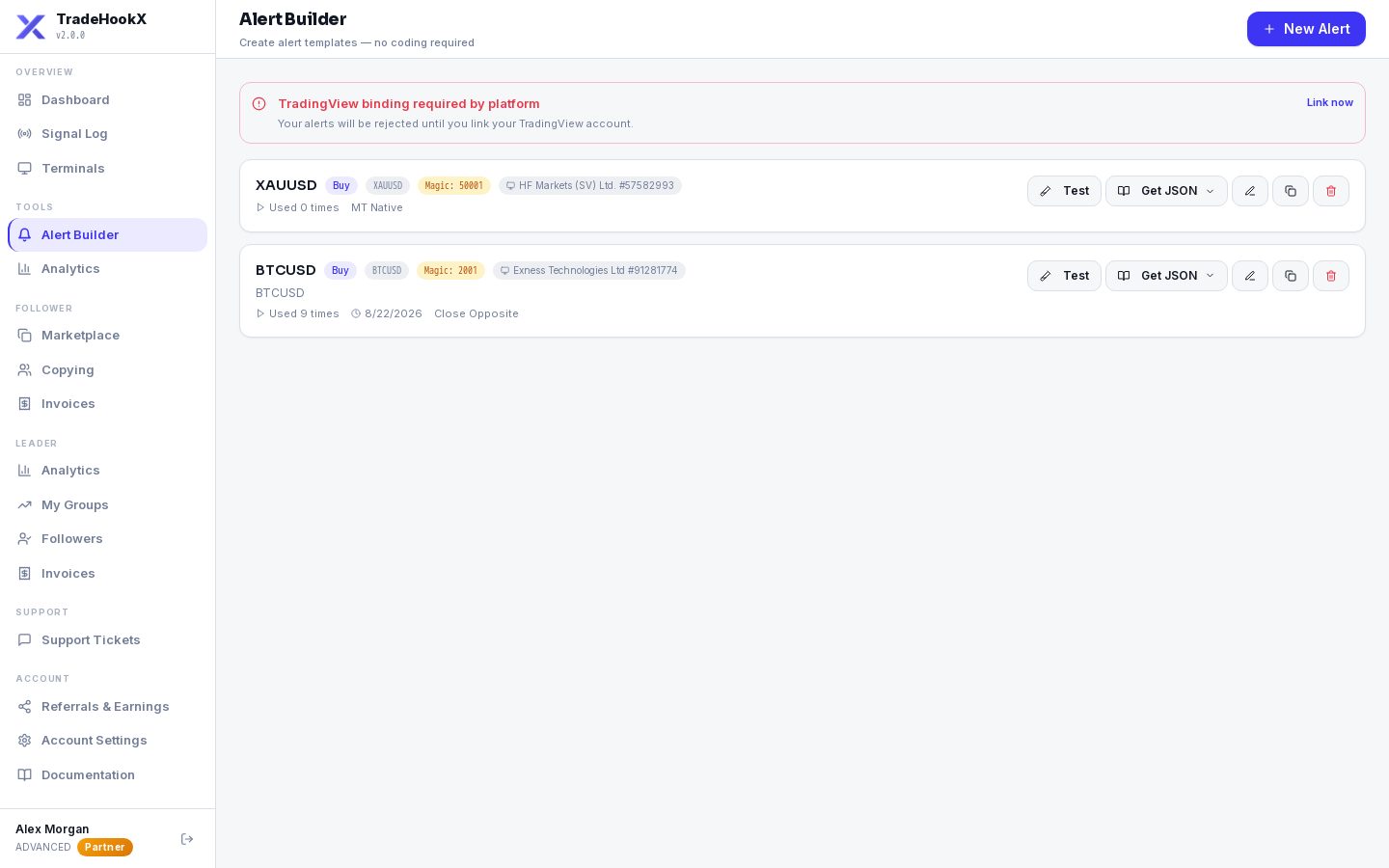
| Button | What it does |
|---|---|
| Test | Sends the alert for real to your terminal - it REALLY trades (a strategy alert is tested as buy 0.01 EURUSD). Use a demo, and close the test trade afterwards. |
| Get JSON | Shows the webhook URL and the message to copy into TradingView. |
| Edit (pencil) | Change the template. |
| Duplicate | Makes a copy - handy for a matching close alert with the same magic. |
| Delete | Removes the template (asks first). |
Edited a template? Copy the message again
TradingView keeps its own copy of the message you pasted. Changing a template in TradeHookX does NOT change alerts already in TradingView - click Get JSON and paste the new message into the TradingView alert.What the message looks like
You never have to type this, but it helps to recognise it:
{
  "licenseKey": "TB-XXXXXXXX-XXXXXXXX-XXXXXXXX",
  "symbol": "{{ticker}}",
  "action": "{{strategy.order.action}}",
  "size": "{{strategy.order.contracts}}",
  "size_type": "units",
  "lot_multiplier": "0.0001",
  "sl": "1", "sl_type": "percentage_distance",
  "magic": "5151",
  "execution_mode": "close_opposite",
  "tv_username": "yourname"
}
Every field is listed in Signal Syntax.