Symbol Mapping
TradingView and your broker do not always use the same name for the same thing. A symbol map is a small translation list per terminal, so an alert for XAUUSD trades GOLD at your broker.
In simple words
It is like a dictionary. TradingView says "XAUUSD", your broker only understands "GOLD". You write one line "XAUUSD → GOLD" and from then on every gold alert works.Do I need it?
- •Open MT5, press Ctrl+U (Symbols) and look at the exact names your broker uses.
- •If the name is the SAME as in your alert (EURUSD = EURUSD) you need nothing.
- •If it is different - an extra letter (EURUSDm, EURUSD.pro, XAUUSDc) or another word (GOLD, US100, NAS100) - add a map.
- •Tell-tale sign of a missing map: the Signal Log shows the error "No price for XAUUSD after 5s wait" - MT5 has no symbol with that name.
Open the list
Terminals → on the terminal card click Symbols. Every terminal has its own list, because two brokers can name the same thing differently.
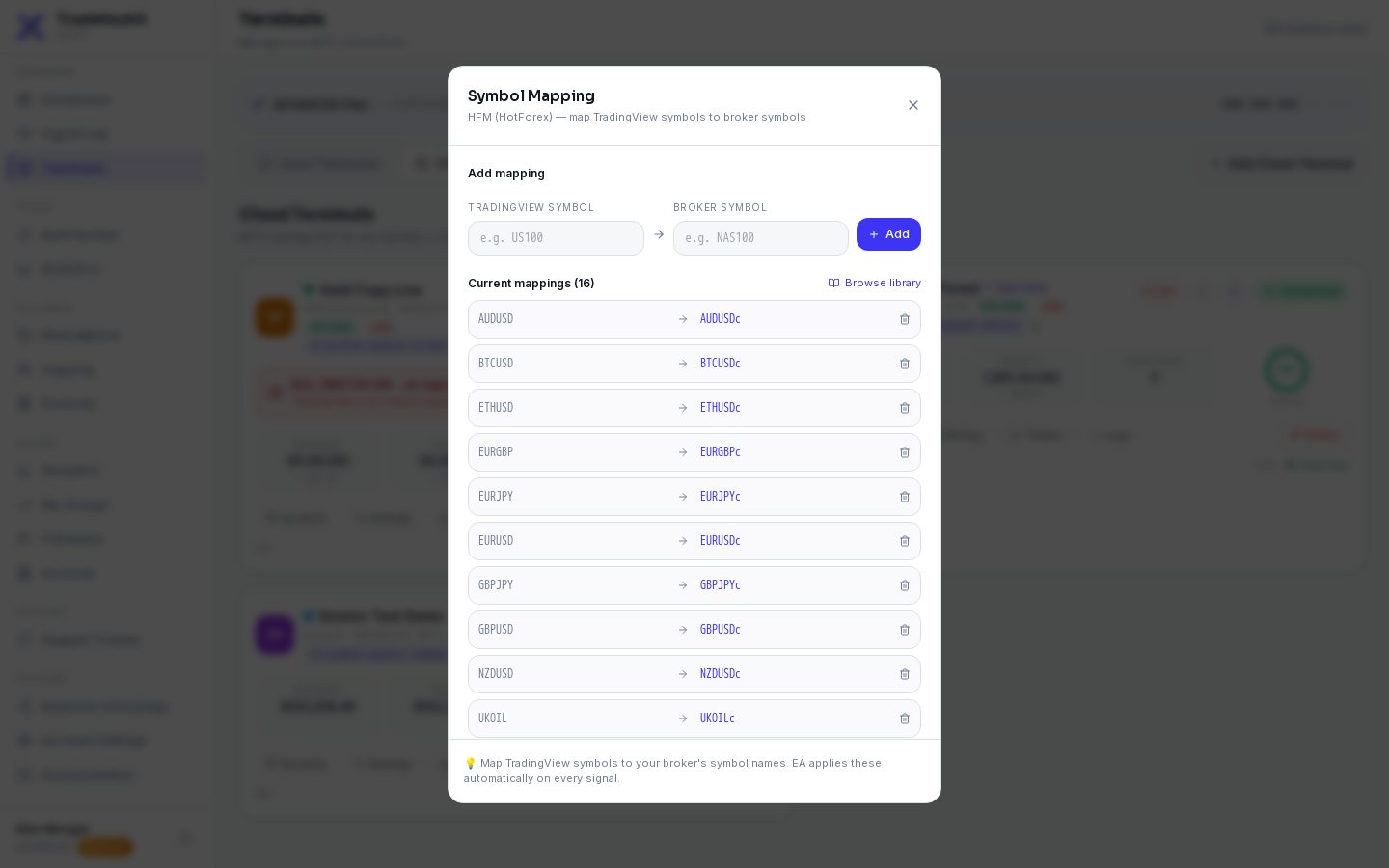
Add a map
TradingView symbol
The name your alert sends, e.g. US100 or XAUUSD. It is stored in capital letters.
Broker symbol
The exact name from your MT5 Symbols window, e.g. NAS100 or GOLD. Copy it letter for letter - dots and small letters matter (EURUSD.pro is not EURUSD.PRO).
Click Add
The EA reloads the list within about 2 minutes. Remove a line with the bin icon.
Three ways to fill the list quickly
| Way | How it works |
|---|---|
| Automatic (cloud terminals) | When you create a cloud terminal you type what EURUSD is called at your broker. If it has an ending (EURUSDm, EURUSDc, EURUSD.pro...), TradeHookX adds the same ending to 16 popular symbols for you: the main forex pairs, gold, silver, BTC, ETH and oil. You see them in the window after the terminal starts. |
| Quick setup | For well-known brokers an empty list shows a ready set. Click Import N mappings to add them all at once. |
| Community library | Mappings other traders use for your broker. Click + Add next to one to copy it into your list; a ✓ means you already have it. |
Check automatic maps
Automatic maps are a good guess, not a promise. Some brokers name gold or indexes differently from forex (e.g. GOLD instead of XAUUSDm). Compare with your Symbols window once, and fix any line that is wrong.How a signal is translated
| Your alert says | Your map | The EA trades |
|---|---|---|
| XAUUSD | XAUUSD → GOLD | GOLD |
| EURUSD | EURUSD → EURUSDm | EURUSDm |
| GBPUSD | (no line for GBPUSD) | GBPUSD - the name is used as it is |
Capital letters in the alert do not matter - xauusd and XAUUSD find the same line.
Symbol maps and copy trading
Leader and follower can be at different brokers. TradeHookX handles that with both maps:
- •The leader's terminal reports a trade on its broker name, e.g. XAUUSDc. TradeHookX looks in the LEADER's map backwards and finds the common name XAUUSD.
- •For each follower it then looks in the FOLLOWER's map: XAUUSD → GOLD. The follower's copy is opened on GOLD.
- •So: leaders should map every symbol they trade, and followers should map every symbol the group trades. A follower without a needed map gets errors such as "No price for XAUUSD" on the copies.
- •Group symbol lists (Symbols to copy) use the common names, e.g. XAUUSD - not the broker names.
Good to know
- •One TradingView name can only point to one broker name per terminal.
- •Deleting a cloud terminal deletes its symbol list too.
- •Your symbol list does not change the chart the EA sits on - the EA trades every symbol from one chart.