Quick Start
From signup to your first automated trade in about 5 minutes. No coding required - if you can copy and paste, you can automate your strategy.
What you need
- •A TradingView plan that includes webhook alerts - TradingView Essential or higher. TradingView's free Basic plan does not support webhooks (a TradingView paid-plan trial works too)
- •An MT4 or MT5 account with any broker (demo or live)
- •A TradeHookX account - all plans include a 7-day free trial with full features, no credit card required
Five steps to your first trade
Create your account
Register at tradehookx.com. Your dashboard is ready immediately - the trial starts automatically and includes 1 terminal with unlimited signals.
Copy your webhook URL and license key
Both are on your dashboard the moment you log in. The webhook URL is where TradingView sends alerts; the license key ties your EA to your account.
https://app.tradehookx.com/webhook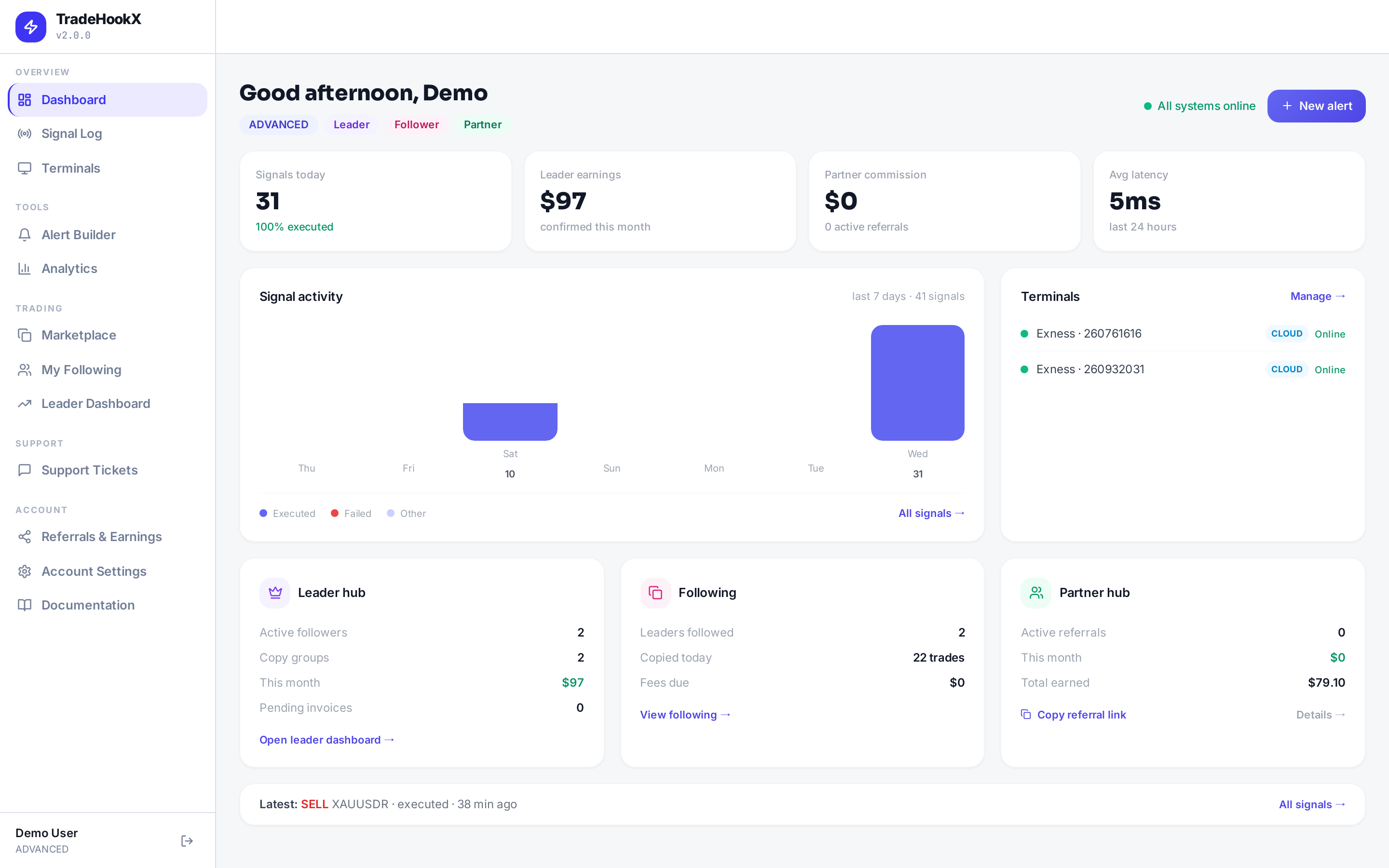
The TradeHookX dashboard right after login
Install the EA on your terminal
Download the Expert Advisor for MT4 or MT5 from the Terminals page, drop it into your MetaTrader Experts folder, attach it to any chart, and enter your license key. Prefer not to run a terminal at all? Advanced and Professional plans include a hosted Cloud Terminal - pick a broker from the library and it deploys in one click.
Create a TradingView alert
Open the Alert Builder on your dashboard - it generates the exact alert JSON for you, including your license key and TradingView username binding. Copy it, then in TradingView create an alert, paste your webhook URL into the Webhook URL field, and paste the generated JSON as the alert message. A minimal signal looks like this:
{ "licenseKey": "TB-XXXX-XXXX-XXXX", "action": "buy", "symbol": "EURUSD" }Fire it and watch it execute
Trigger the alert (or use the built-in Webhook Tester on your dashboard). The trade appears in your live signal feed and executes on your terminal in under 15 milliseconds.
No terminal running yet?
Use the Webhook Tester on your dashboard to fire test signals and see the full pipeline working before you connect a real terminal.Where to go next
- •EA Installation - detailed setup for MT4/MT5, including required terminal settings
- •Signal Syntax - every field you can send: stop loss, take profit, multi-TP, breakeven, trailing stops, strategy tags
- •Cloud Terminals - run your automation 24/7 without a PC or VPS