Terminal Settings & Risk
Every terminal has its own safety settings. They live on the terminal, not in the alert - so they protect the account no matter what an alert or a copy group sends.
In simple words
Think of these settings as the rules of the house. Your alerts are guests: they can ask for a trade, but if a rule says "no more trades today", the EA politely says no.Where to find them
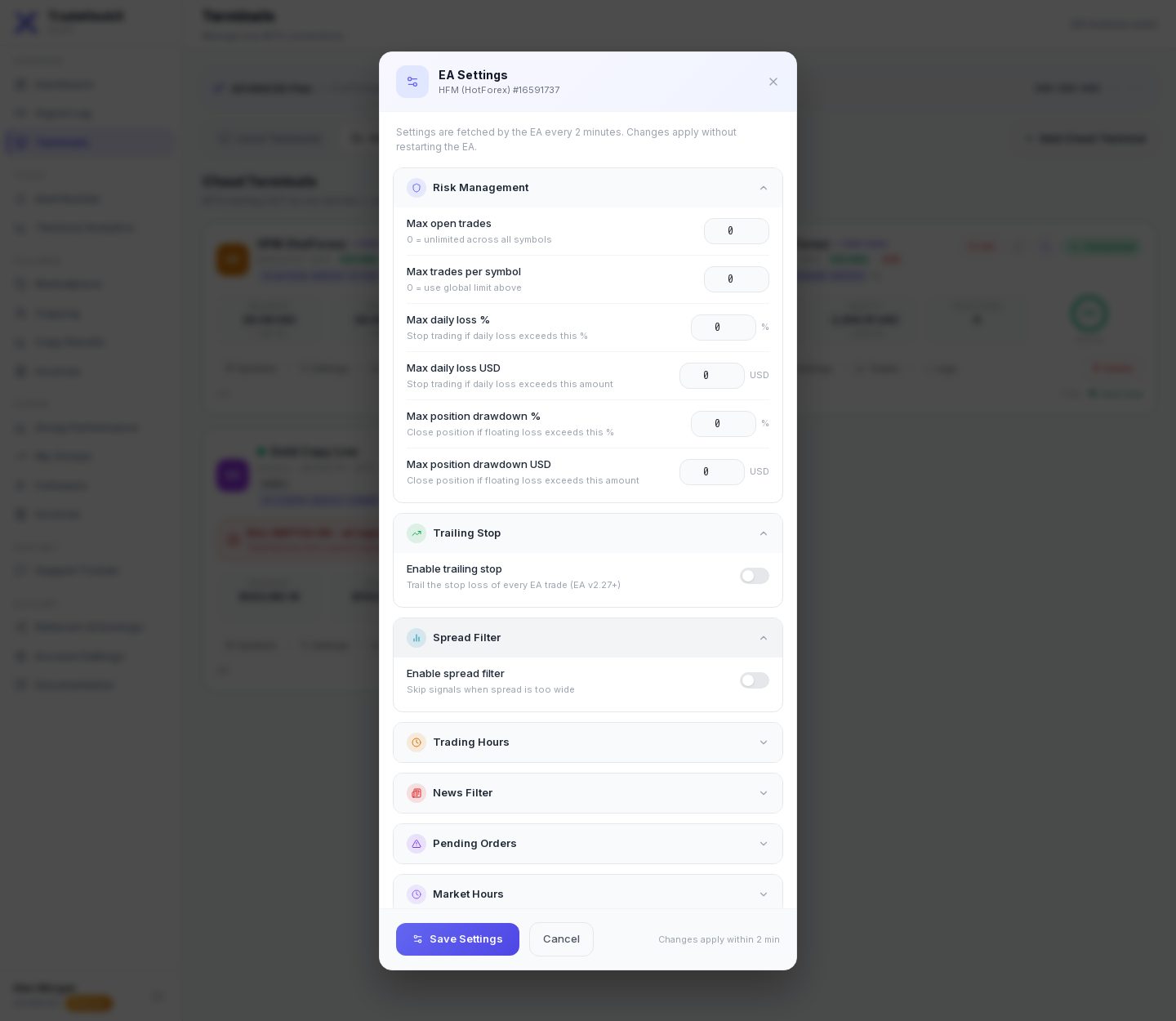
Terminals → on the terminal card click Settings (cloud) or EA Settings (local). Change what you need and click Save. The EA picks up new settings within seconds - no restart needed.
The one rule to remember
Settings only stop NEW trades - closes always go through
The limits below only block what would OPEN a trade (buy, sell and the pending orders buylimit, selllimit, buystop, sellstop). A close, partial close, change of stop loss or cancel is never blocked - you can always get out of a trade. A buy or sell in Close Opposite or Flip mode still closes what it has to; only the new trade is refused, and the Signal Log says so. When a signal is blocked you see it in the Signal Log as Error with the reason, e.g. "Daily loss limit hit".Risk Management
| Setting | What it does | Example |
|---|---|---|
| Max open trades | How many trades may be open on this account at the same time. When the limit is reached, new entries are refused ("Max trades limit hit"). 0 = no limit. | 5 → the 6th buy is refused until one trade closes |
| Max trades per symbol | The same, but per symbol. 0 = only the limit above counts. | 2 → at most 2 gold trades at once |
| Max daily loss % | If the account has lost this % since the start of the day, no new trades are opened for the rest of that day ("Daily loss limit hit"). The day is the broker's day (the clock on your MT5). | 5% of a $1,000 account → stop after -$50 |
| Max daily loss (amount) | The same as an amount, in the account's own currency: on a USC cent account 100 means 100 USC, which is $1. If you set both, whichever is reached first stops trading. | $40 on a USD account, 4000 on a USC account |
| Max position drawdown % | Watches every open trade. If ONE trade is losing more than this % of your equity, the EA closes that whole trade by itself. 0 = off. | 3% → a trade losing $30 on a $1,000 account is closed |
| Max position drawdown (amount) | The same as an amount, in the account's own currency. The EA checks every 5 seconds. | $25 on a USD account, 2500 on a USC account |
| Max lot per trade | Refuses any new trade bigger than this, from an alert, a copy or the order window. It refuses the trade rather than making it smaller. 0 = off. Needs EA v2.38. | 1 → a 1.5 lot order is refused |
| Max risk per trade % | Refuses a new trade that would lose more than this % of the balance if its stop loss is hit, worked out from the real stop distance. A trade with no stop loss is refused too, because its risk cannot be worked out. 0 = off. Needs EA v2.38. | 2% → a trade risking 3% is refused |
| Count daily loss from | Equity (default): equity at the start of the day against equity now, so open trades count, including profit they give back. Closed trades only: only what was closed today counts, so a large loss on an open trade will not stop new trades. Needs EA v2.38. | See the notes below |
- •By default the daily loss is measured from your equity at the start of the day, so open losing trades count too, and a trade already in profit at the start of the day counts as a loss if it gives that profit back.
- •Once the daily limit is hit it stays hit until the next day - even if the price comes back - unless you change the limit. Your open trades are NOT closed by the daily limit; only new ones are refused.
- •A restart of the terminal does not reset the day (EA v2.36). A withdrawal lowers your equity, so it counts like a loss for that day (not with Closed trades only).
- •These limits count the trades TradeHookX knows about: trades from your alerts, copied trades and (on v2.26) hand trades the EA reported.
Trailing Stop
A trailing stop moves your stop loss behind the price as the trade goes your way, so you keep more profit if the price turns.
| Setting | What it does |
|---|---|
| Enable trailing stop | Switches the terminal's default trailing stop on. |
| Trailing distance | How far behind the price the stop loss stays, in pips (TradeHookX pips - see Signal Syntax). |
| Trailing step | How far the price must move before the stop loss is moved again, so it is not changed on every tick. |
- •With the switch on, the EA trails every trade it knows: trades from your alerts, copied trades and hand trades it reported (EA v2.27 or newer).
- •An alert that sets its own trailing stop (Alert Builder) uses its own values for that trade instead.
- •Example: distance 20, step 5 - on a buy the stop loss stays 20 pips below the price and moves up every time the price rises 5 more pips. It never moves down.
Spread Filter
The spread is the small gap between the buy and the sell price - a hidden cost. It gets very wide around news and at night.
| Setting | What it does | Example |
|---|---|---|
| Enable spread filter | Refuse NEW trades while the spread is wider than the maximum ("Spread too wide"). Closes are never blocked. | - |
| Max spread | In TradeHookX pips (1 pip = 10 of the symbol's smallest steps). Used for every symbol without its own limit. | EURUSD 2 = 0.0002; gold 30 = $3.00 |
| Max spread per symbol | Pick a symbol from your broker's list and give it its own limit. It shows the spread right now, to help you choose. Applies to alerts, orders from the order window and copied trades on this terminal. Needs EA v2.37. | BTCUSDc 60, XAUUSDc 30 |
Needs EA v2.36 or newer. Older EAs read the spread under the alert's symbol name, so on an account with a suffix (BTCUSD traded as BTCUSDc) the filter never blocked anything. If your symbols trade with very different spreads, give them their own limits in Max spread per symbol, or add max_spread to an alert or set it in the Alert Builder. An alert's value wins, and it works even with this switch off.
Trading Hours
| Setting | What it does |
|---|---|
| Enable trading hours filter | Only open new trades inside the hours below. Outside them entries are refused ("Outside trading hours"). |
| Start hour / End hour | Whole hours 0-23. Both hours count: 8 to 17 means from 08:00 until 17:59. |
| Timezone offset | The hours are UTC plus this offset, so you can type your own local hours. Example: you live at UTC+4 and want 9 to 17 your time → offset +4, start 9, end 17. Offset 0 = UTC. |
- •A window across midnight works too: start 22, end 6 = from 22:00 until 06:59.
- •Needs EA v2.27 or newer (older EAs used the broker's clock instead of UTC).
News Filter
Big economic news (interest rates, jobs reports...) can move prices wildly. The news filter stops NEW trades shortly before and after such news.
| Setting | What it does | Example |
|---|---|---|
| Enable news filter | Refuse new trades around news ("News filter active"). Closes are never blocked. | - |
| High impact only | On = only the biggest (red) events. Off = high and medium events. | US jobs report = high |
| Pause before news | Minutes before the event when new trades stop. | 15 |
| Pause after news | Minutes after the event until trading starts again. | 15 |
- •The calendar is the public ForexFactory calendar, refreshed every hour.
- •Only symbols of the event's currency pause: USD news pauses EURUSD, XAUUSD and BTCUSD, but not EURGBP. Index symbols (US100, GER40...) pause for every event.
- •Needs EA v2.27 or newer for the per-currency rule; older EAs pause every symbol.
Pending Orders
| Setting | What it does |
|---|---|
| Allow pending orders | Off = buylimit, selllimit, buystop and sellstop alerts are refused ("Pending orders disabled"). |
| Default expiry | Hours after which an unfilled pending order is cancelled by the broker. 0 = it stays until you cancel it (GTC). An alert can set its own "expiry_hours", which wins. |
Market Hours
| Setting | What it does |
|---|---|
| Keep alive during closed market | For cloud terminals: when the EA goes quiet (for example at the weekend) TradeHookX normally checks the terminal and may mark it Offline. With this on, a quiet terminal is never marked Offline. Leave it OFF unless you trade crypto at the weekend - with it on, a real problem is noticed later. |
Execution
| Setting | What it does | Example |
|---|---|---|
| Refuse orders below the minimum lot | When an alert sizes by risk (for example 0.5% of the balance) and the result is below the broker's minimum lot, the trade is normally opened at the minimum, which risks more than you asked. Switched on, it is refused instead and the Signal Log shows both lot sizes. Needs EA v2.36. | Risk says 0.003 lots, the minimum is 0.01 -> refused |
| Max slippage | How far (in points, the smallest price step) the fill price may be from the price the EA asked for. If the market jumps further, the broker refuses the order instead of filling at a bad price. | EURUSD 10 points = 1 pip |
Trade Reporting
| Setting | What it does |
|---|---|
| Report trade opens | Tells TradeHookX about every trade that opens. Needed for the dashboard, Terminal Analytics, copy trading and invoices. Always on for a terminal that leads or follows a copy group. |
| Report trade closes | Tells TradeHookX the result of every close. Needed for profit, invoices and copy closes. Always on for a terminal that leads or follows a copy group. |
Leaders and followers: keep reporting ON
If you lead a copy group, your followers only receive your trades and closes because the EA reports them. If you follow, your copied profit is billed from these reports. Switching reporting off breaks copy trading on that terminal.Good to know
- •Every terminal has its own settings - a demo and a live account can have different limits.
- •Copy trading also has its own per-group limits (max lot, max copies per day) - see For Followers. Both apply: the terminal limits are the last safety net.
- •Emergency? Use the Kill Switch instead - it blocks every signal at once.
- •Start small: a daily loss limit and a max open trades value are the two most useful settings for any automated strategy.