Settings & Notifications
Account → Account Settings. Everything about your account in tabs: profile and security, notifications, billing, TradingView, custom domain and payouts.
In simple words
This is your account's control room: change your name and password, choose how we tell you about trades and problems (email or Telegram), and - if you are a leader or partner - where your money goes.Profile & Account
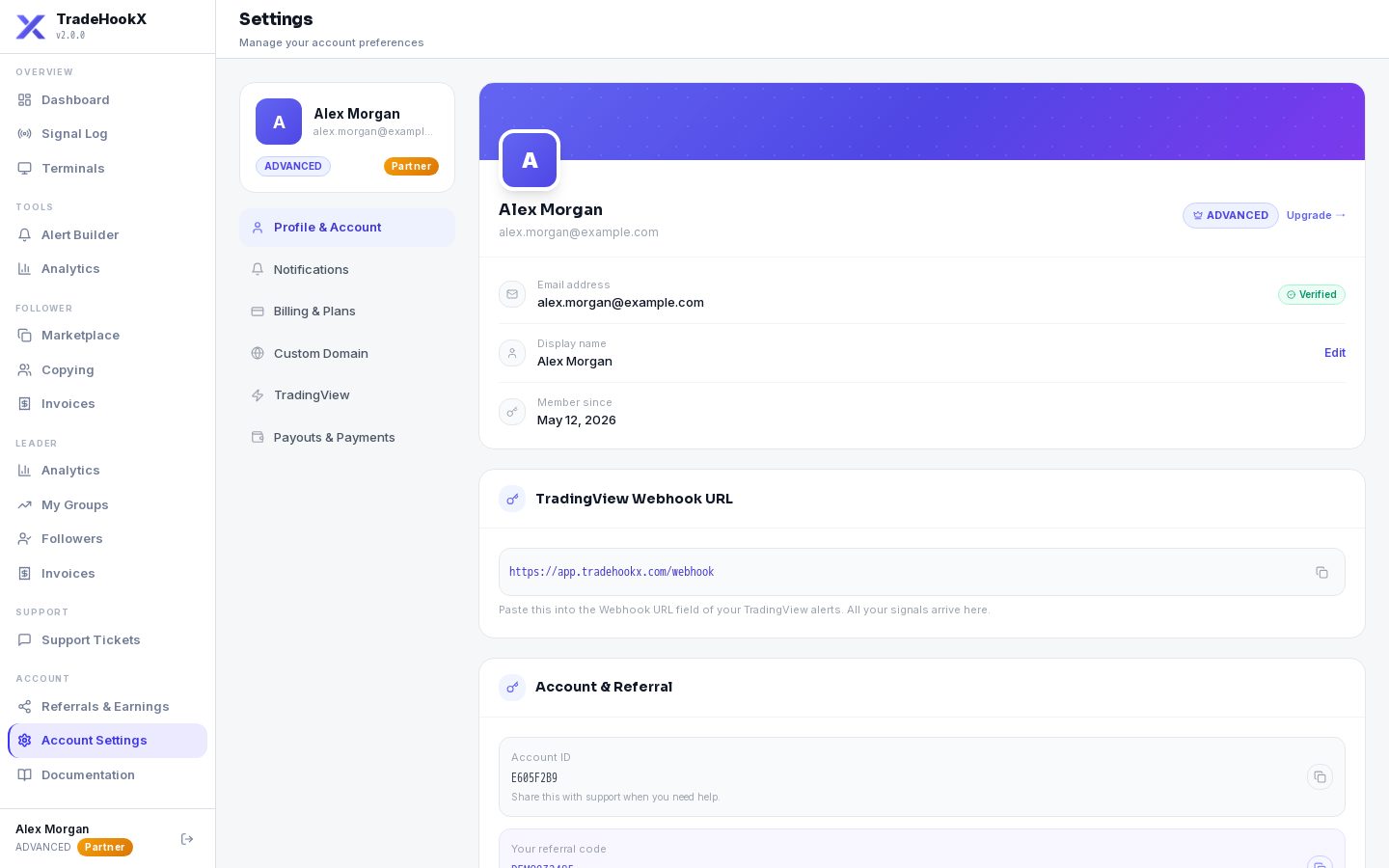
| Item | What you can do |
|---|---|
| Display name | Click Edit, type 2-60 characters, Save. Shown in the portal and to leaders you follow. |
| Email address | Your login. Verify it with the code we send if it shows Unverified. |
| Account ID / Member since | Share the Account ID with support when you need help. |
| Your referral code | Your invite code - see Referrals & Partners. |
| Account password | Current password + new password twice. |
| Two-factor login (2FA) | Scan the QR code with an authenticator app (Google Authenticator, Authy...), type the 6-digit code. Save the backup codes - they are shown only once. To switch it off you need your password and a code. |
Turn on 2FA
Your account can control real-money trades. A password alone is not enough - switch on two-factor login.Notifications
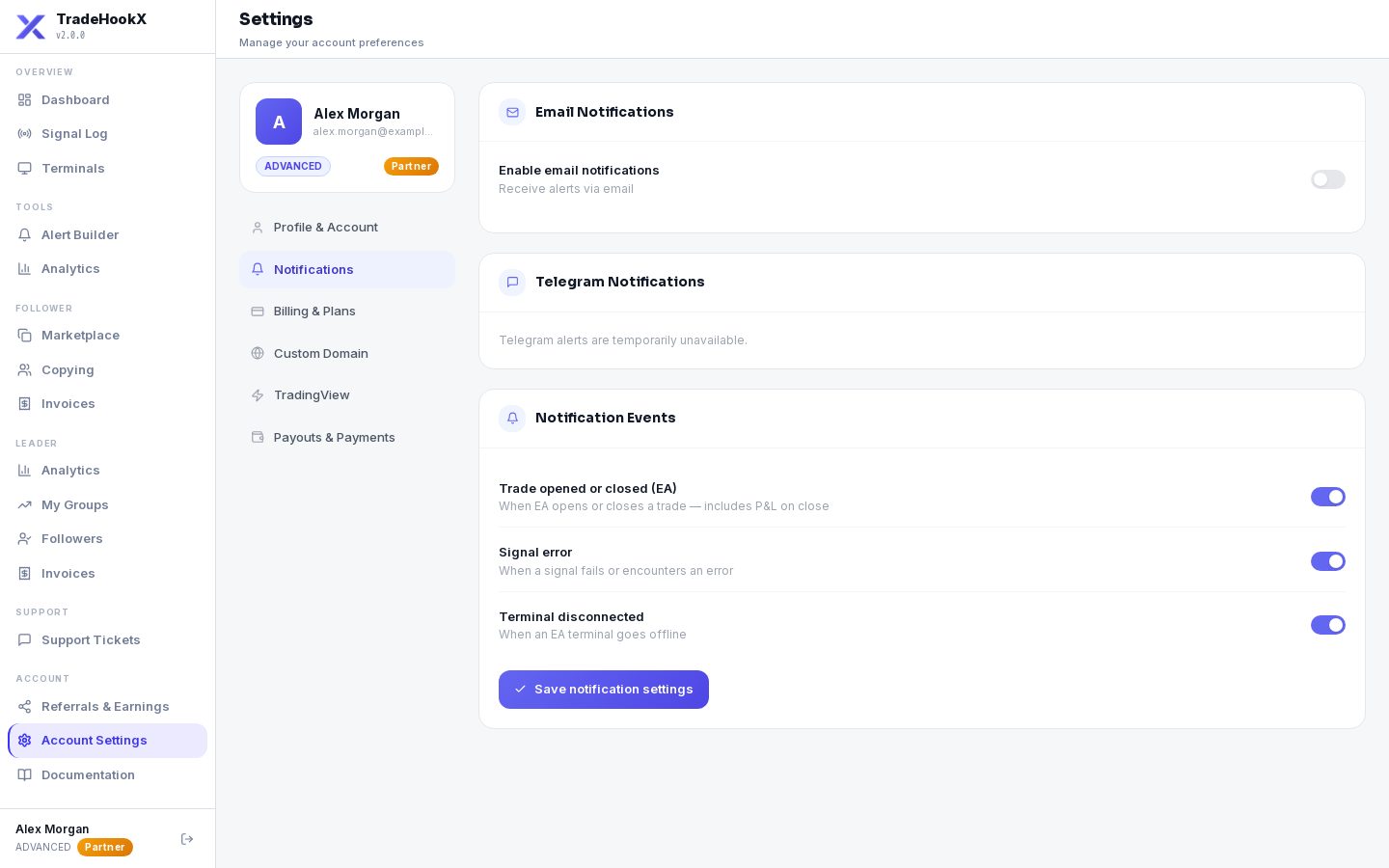
| Event | When you are told |
|---|---|
| Trade opened or closed (EA) | When your EA opens or closes a trade - with the profit / loss on close. |
| Signal error | When a signal fails, with the reason. |
| Terminal disconnected | When a terminal goes offline - and again when a cloud terminal is back online. |
Some messages are always sent because they matter for money or safety: copy-trading notices (joins, invoices, payments, pauses), kill switch changes, payout address changes, trial and renewal reminders.
Connect Telegram
Click Connect Telegram
A connect link opens our official bot @TradeHookXAlertsBot. The link is valid for 15 minutes.
Press Start in Telegram
The page shows "Waiting for you to press Start…" and turns green when it is linked.
Send a test
Click Send test - "Test message sent - check Telegram".
To stop: click Disconnect, send /stop to the bot, or block the bot. We never ask you for a bot token or a chat ID.
Billing & Plans
Your plan, renewal date, upgrade / downgrade, cancel, extra copy groups and the groups you lead. Explained in Billing & Plans.
TradingView
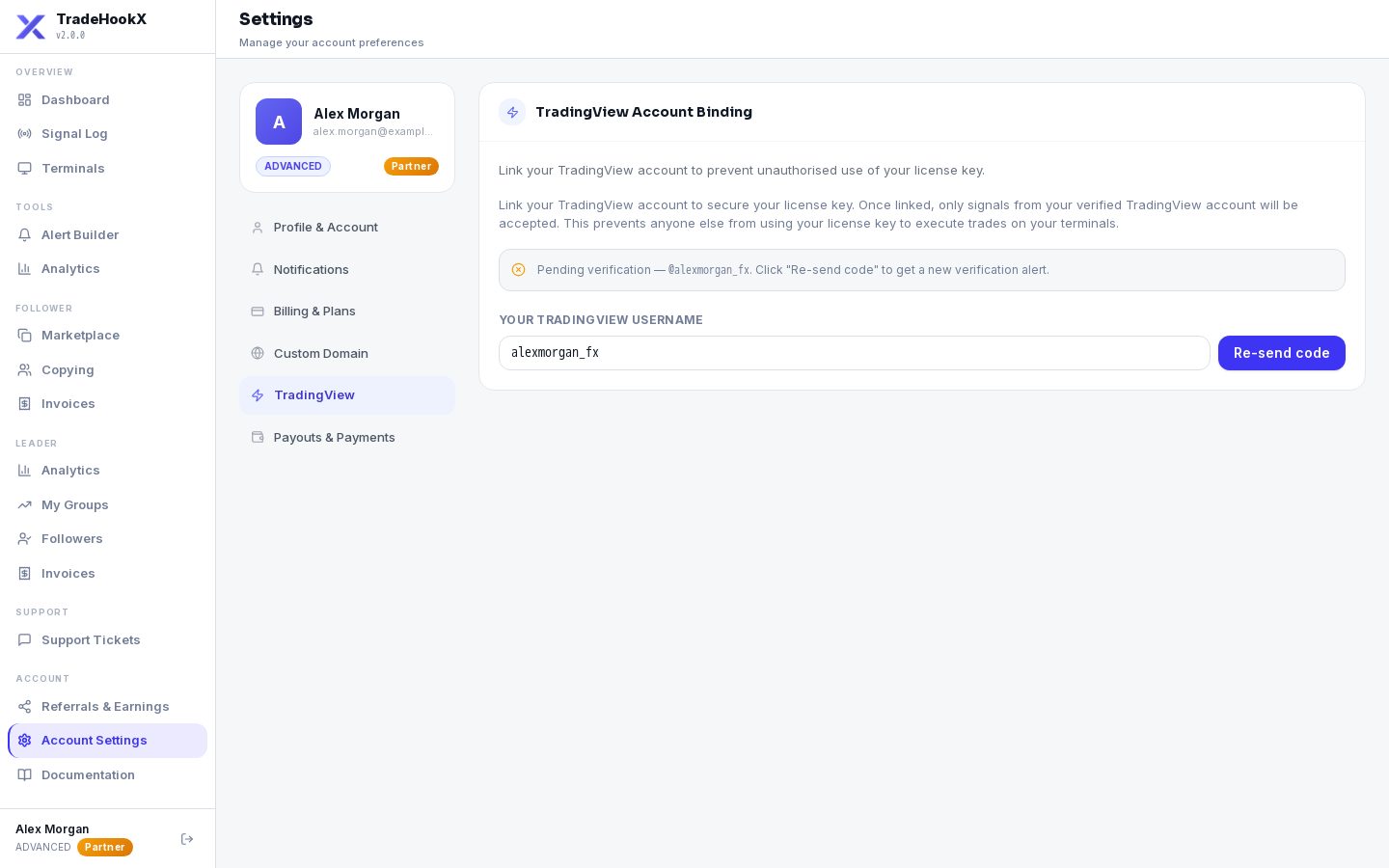
Link and verify your TradingView username so a leaked license key alone cannot trade. Step by step in TradingView Alerts.
Custom Domain
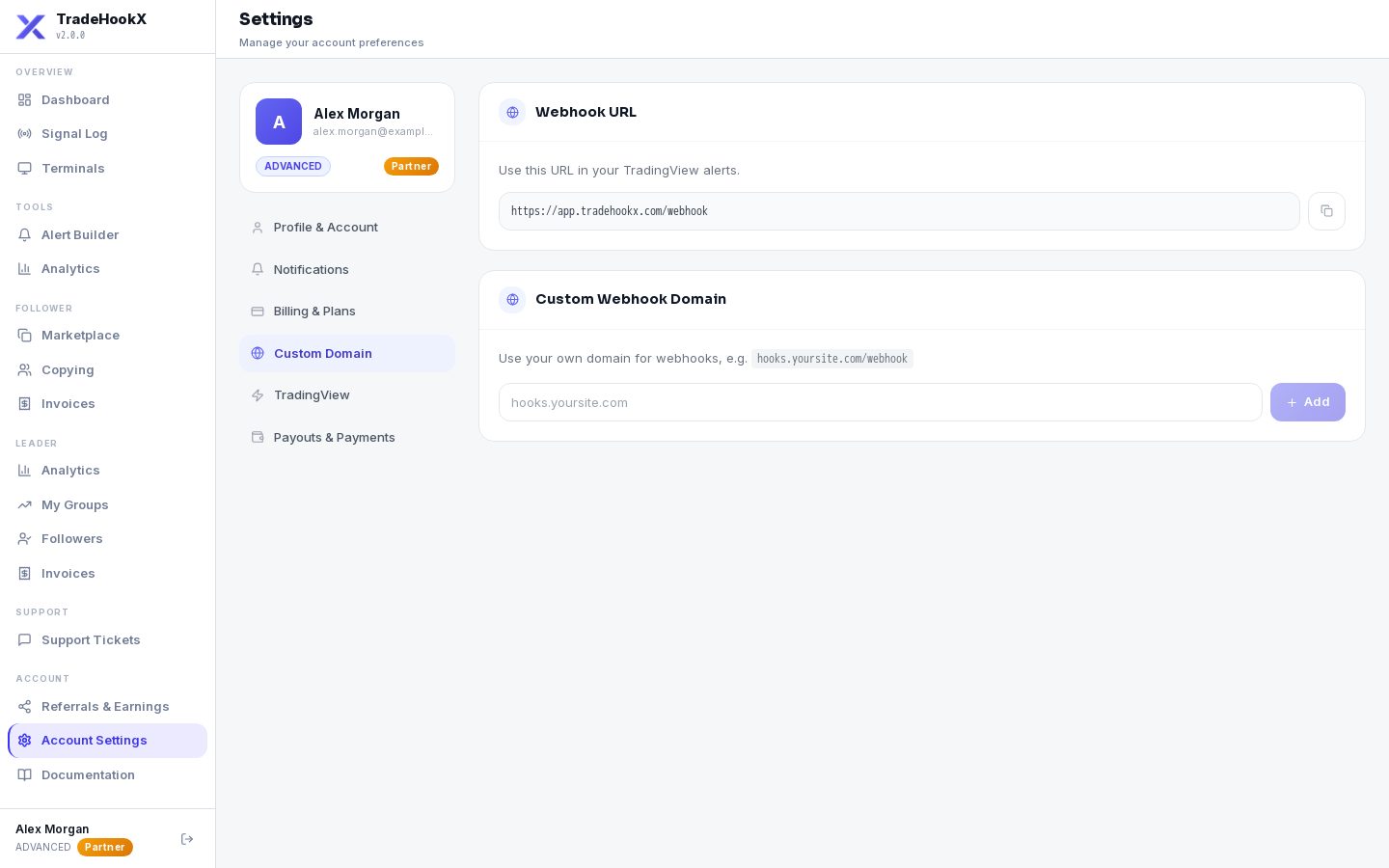
- •For partners and signal providers who want their own webhook address (e.g. hooks.yoursite.com/webhook) instead of app.tradehookx.com.
- •Type the domain and add the DNS TXT record shown (_tradebridge-verify) at your domain provider, then click Verify (DNS can take up to 48 hours).
- •After verification, open a support ticket - our team connects the domain to our servers and confirms when webhooks on it work. Until then keep using https://app.tradehookx.com/webhook.
Payouts & Payments
Shown to leaders and partners - where we send your money.
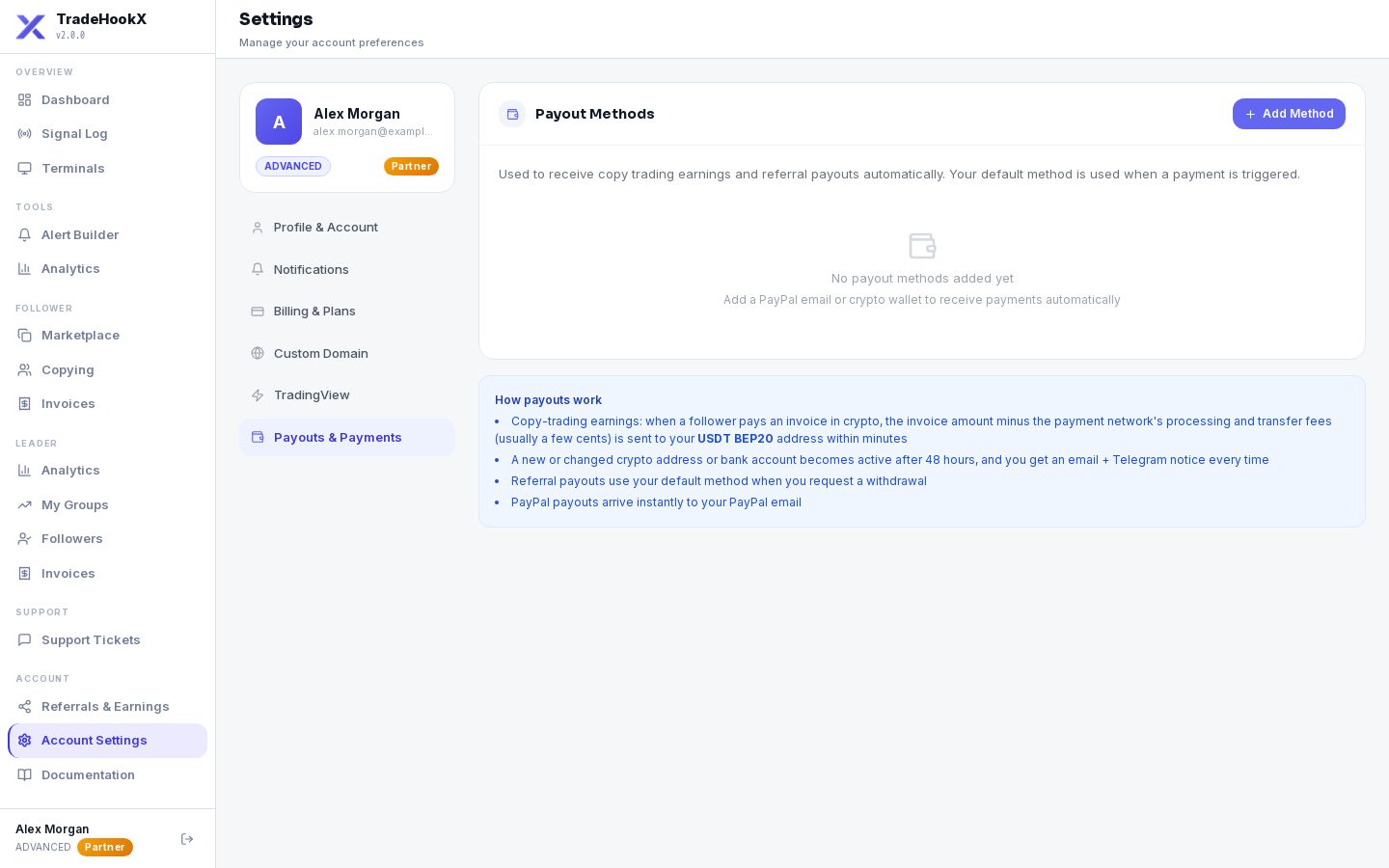
| Method | Used for | Setup |
|---|---|---|
| USDT (BEP20) wallet | Copy invoices your followers paid with crypto. | Paste your BNB Smart Chain address (starts with 0x). Usable 48 hours after adding or changing it; you are notified. |
| Bank account via Stripe | Copy invoices paid by card, and partner commission withdrawals. | Click connect and fill in Stripe's secure form. Choose per-invoice or weekly payouts. The fee table and a worked example are shown. |
Double-check your wallet address
Crypto sent to a wrong address cannot be recovered. Copy and paste the address from your wallet app; never type it by hand.