EA Installation
The Expert Advisor is the bridge between TradeHookX and your MetaTrader terminal. It runs on your own MT4 or MT5 - install once, and every signal you send executes automatically.
On Advanced or Professional?
Cloud Terminals come with the EA pre-installed and licensed - you can skip this page entirely. This guide is for running the EA on your own PC or VPS.Install in four steps
Download the EA
Go to the Terminals page in your dashboard and download the EA for your platform - there are separate builds for MT4 and MT5.
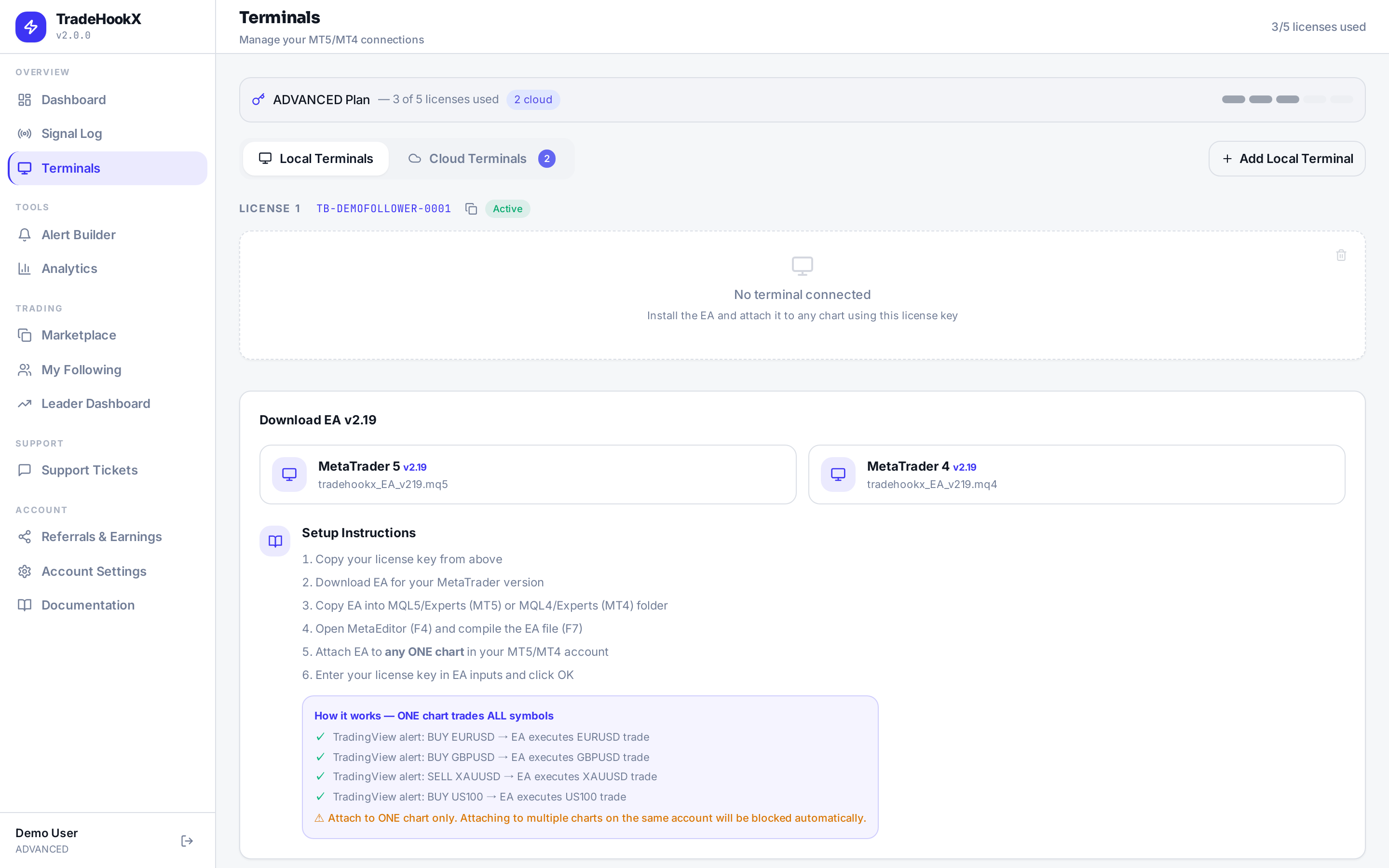
The Local Terminals tab
Add it to MetaTrader
In MetaTrader, open File, then Open Data Folder. Place the EA file inside the Experts folder (MQL5/Experts on MT5, MQL4/Experts on MT4), then restart MetaTrader or right-click Expert Advisors in the Navigator and hit Refresh.
Enable the required terminal settings
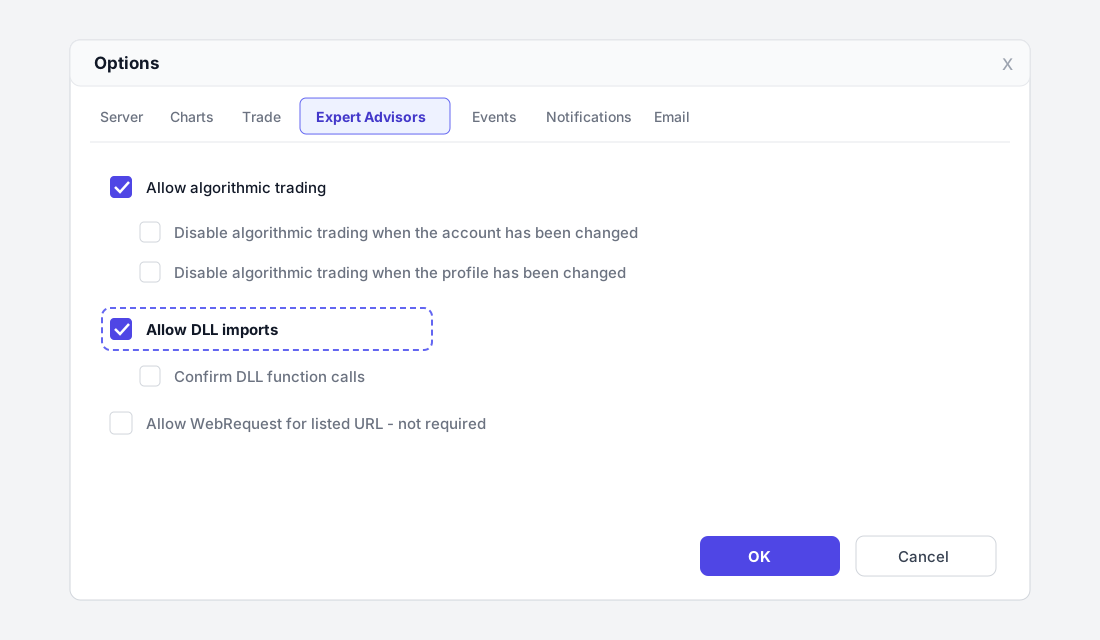
Open Tools, then Options, then the Expert Advisors tab, and enable both:
[x] Allow algorithmic trading   (MT4: Allow automated trading)
[x] Allow DLL imports
DLL imports are required because the EA uses a native Windows connection library for reliable communication - no WebRequest URL whitelisting is needed.
Attach to a chart and enter your license key
Drag the EA onto any single chart - the chart symbol does not matter, the EA trades every symbol from one chart. In the inputs tab, paste your license key from the dashboard and confirm that Allow DLL imports is ticked in the dialog too.
LicenseKey = TB-XXXX-XXXX-XXXX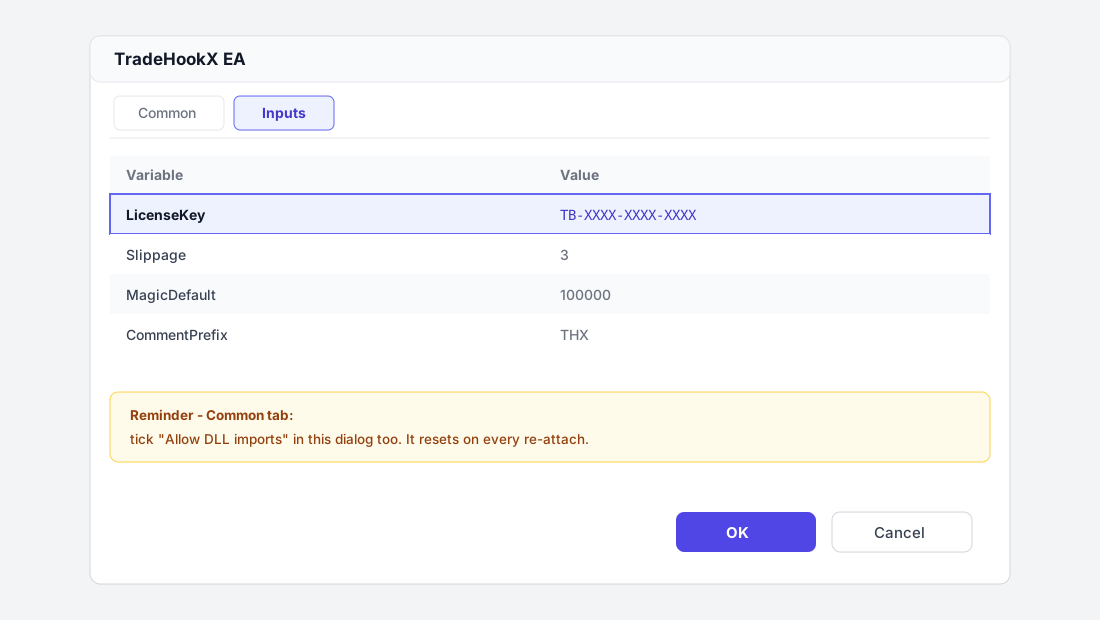
Verify it is connected
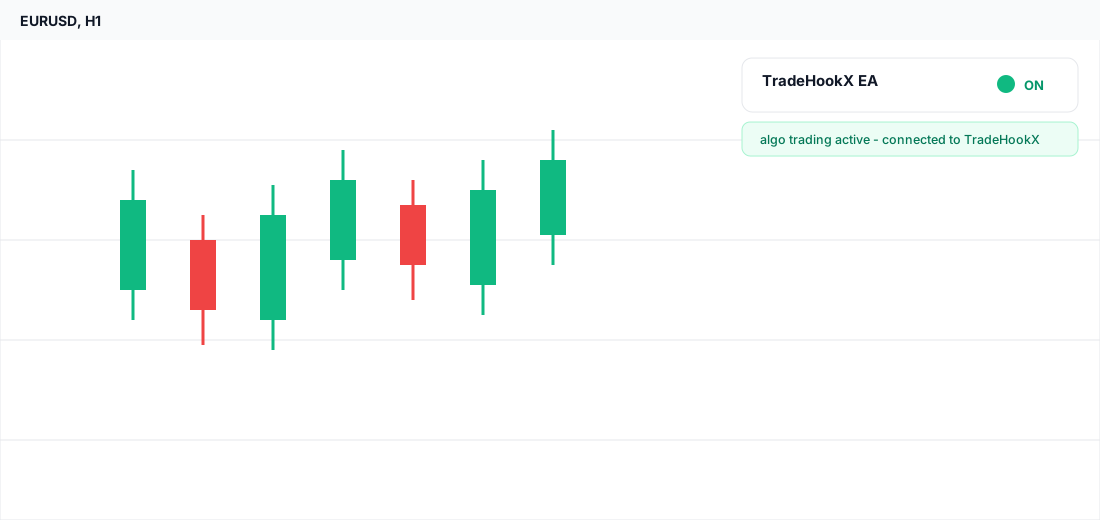
- •MetaTrader: the algo trading indicator on the chart shows active (no error in the Experts log)
- •Dashboard: your terminal appears as Online on the Terminals page within a few seconds
- •Fire a test from the Webhook Tester - the signal should show EXECUTED in your live feed
Run one EA instance per account
Attach the EA to exactly one chart per MetaTrader terminal. Multiple instances on the same account will compete for the same signals.